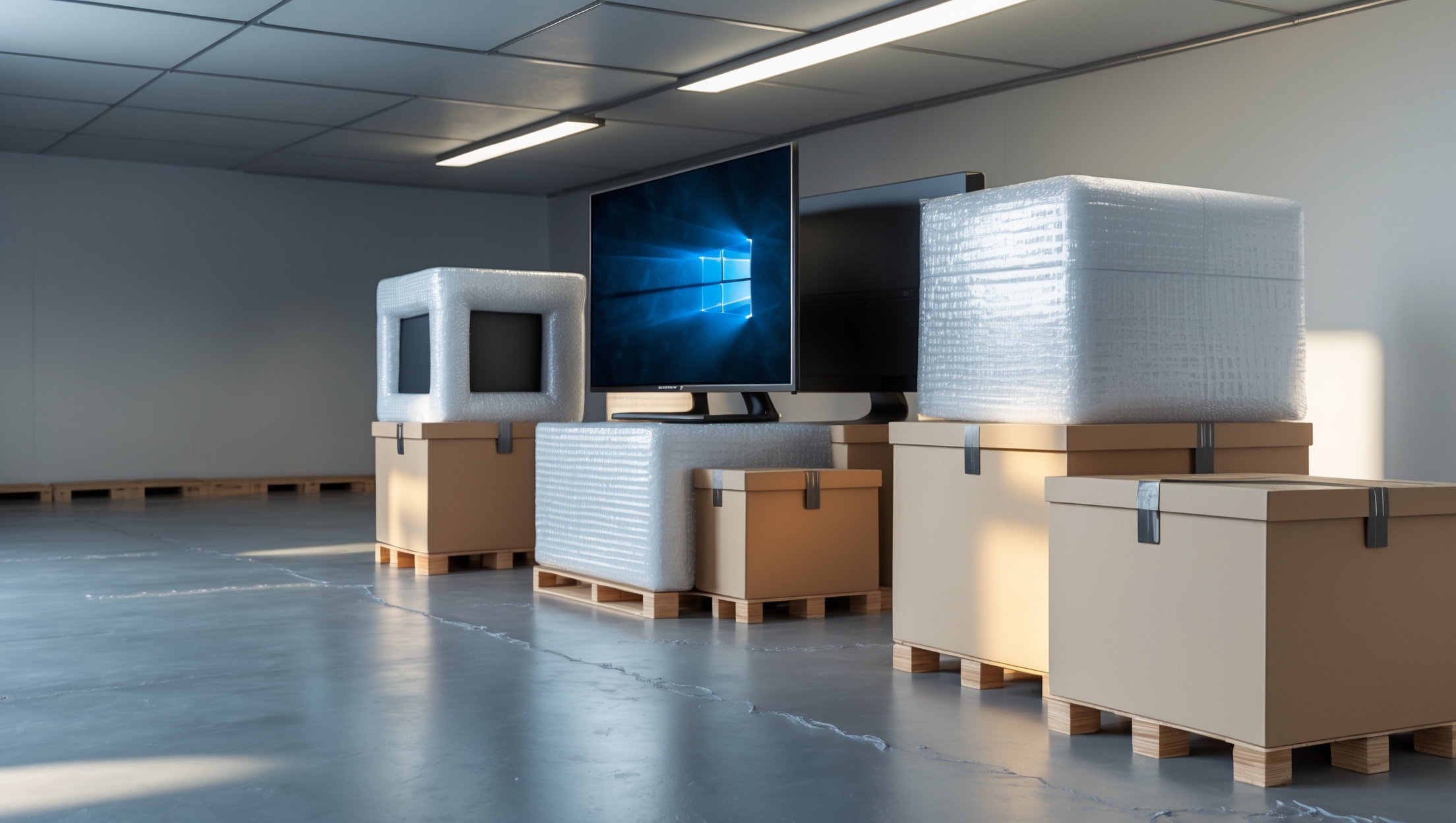
Introduction: Why Packing Electronics Demands Special Care
Electronics are among the most valuable and fragile items people move or place in storage. From high-definition TVs and desktop computers to gaming consoles, audio equipment, and smart home devices, these items are not only expensive but also highly sensitive to shocks, static, moisture, and temperature extremes. Unlike furniture or clothing, a careless bump or an overlooked cable can mean costly repairs, lost data, or even irreparable damage. For movers and storage users, understanding the right way to pack, transport, and store electronics can make the difference between a seamless setup in your new place and the frustration of malfunctioning devices. In this comprehensive guide, we’ll walk you step by step through preparing your electronics, choosing the right packing materials, preventing common mistakes, and ensuring that everything arrives—and works—just as it should. Whether you’re a first-time mover or a seasoned pro, these expert strategies will help you avoid the most frequent pitfalls and protect your tech investment every step of the way.
Preparing Your Electronics for Packing
1. Back Up Data and Deactivate Accounts
Before you unplug a single cord, take a few critical precautions to safeguard your data and devices:
- Back Up Computers and Mobile Devices: Use cloud services or external hard drives to back up important files, photos, and settings. This protects against loss from accidental drops, theft, or damage.
- Sign Out and Deauthorize Accounts: For smart TVs, streaming devices, and game consoles, log out of accounts and deactivate device registrations to prevent unauthorized access if anything goes missing.
2. Gather Original Boxes and Protective Materials
The original packaging for your electronics is usually custom-fitted with foam inserts, providing the best protection. If you saved these boxes, now is the time to use them. If not, select sturdy, double-walled moving boxes and high-quality packing materials:
- Anti-static bubble wrap to prevent static discharge
- Foam sheets or inserts for shock absorption
- Plastic bags for small accessories and cables
- Sturdy plastic bins for especially expensive or delicate items
3. Clean and Prepare Each Device
Dust and debris can cause overheating or corrosion during storage. Use microfiber cloths and compressed air to clean screens, vents, and keyboards before packing. Remove batteries from remotes, wireless mice, or accessories to prevent leaks during transit and storage.
Disassembly and Cable Management
1. Photograph Each Setup
Before unplugging anything, take clear photos of the front and back of each device, showing how cables are connected. These images will be invaluable when it’s time to reconnect everything in your new location.
2. Label and Organize Cables
- Use masking tape or cable tags to label each cord (e.g., “TV HDMI 1,” “Router Power”).
- Bundle cords with Velcro ties or rubber bands, never using adhesive tape directly on wires.
- Place cables, remotes, and accessories in labeled, sealable bags and pack them with their corresponding device.
3. Remove Media and Ink Cartridges
Take out all CDs, DVDs, Blu-rays, or game disks from drives to prevent them from getting stuck or scratched. For printers, remove ink or toner cartridges and pack them separately in sealed bags to prevent leaks.
Packing Specific Electronics: Step-by-Step
1. Televisions and Monitors
- Use the Original Box whenever possible. If not, find a heavy-duty box just larger than the screen size.
- Wrap the screen in anti-static bubble wrap, then a soft blanket. Place foam corners around the edges.
- Stand upright in the box. Never lay flat, as this increases pressure on the screen.
- Fill empty space with packing peanuts or foam to prevent shifting.
2. Desktop Computers and Laptops
- Shut down completely and unplug all peripherals.
- Wrap the tower or laptop in anti-static bubble wrap, then place in a snug box with at least two inches of padding on all sides.
- Use a hard-sided case for laptops if available.
- Label the box as “Fragile – Computer Equipment.” Avoid stacking heavy boxes on top.
3. Gaming Consoles and Streaming Devices
- Eject any discs and remove memory cards.
- Wrap the console in anti-static material and place it in a box with ample padding.
- Store controllers and cables in labeled bags within the same box, but separated from the device by foam or bubble wrap.
4. Audio Equipment and Speakers
- Detach all wires and carefully coil them.
- Wrap each piece individually to prevent scratches.
- For speakers, protect cones and tweeters with extra foam padding.
5. Small Electronics (Routers, Modems, Cameras, etc.)
- Use smaller boxes to avoid overpacking.
- Wrap each item in bubble wrap and secure with tape.
- Keep accessories with each device in labeled bags.
Environment Matters: Special Storage Considerations
1. Climate Control
Electronics are highly sensitive to temperature changes and humidity. If you’re placing items in storage for more than a few days, choose a climate-controlled unit. Extreme heat can warp plastic and degrade batteries, while moisture can cause corrosion and mold.
2. Moisture Protection
- Silica gel packets absorb moisture—place a few in each box.
- Desiccant containers can provide extra protection for high-value devices.
3. Positioning in Storage
- Place electronics on shelves or pallets, never directly on the floor, to avoid water damage from leaks or floods.
- Maintain airflow around boxes—don’t stack tightly against walls.
Moving Day: Loading and Transporting Electronics
1. Load Electronics Last, Unload First
Keep electronics accessible by loading them last onto the truck. This minimizes the time they spend in potentially hot or cold environments and reduces the risk of being crushed by heavier items.
2. Secure Placement in the Vehicle
- Upright position for TVs and monitors, wedged between soft items (like mattresses) if possible.
- Secure boxes with straps or bungee cords to prevent shifting. Never stack heavy boxes on electronics.
- Protect from direct sunlight during transit to prevent overheating.
Unpacking and Setting Up Electronics After the Move
1. Let Devices Acclimate
Allow electronics to reach room temperature before plugging them in, especially if they’ve been in storage or a cold truck. Sudden temperature changes can cause condensation inside sensitive components.
2. Inspect for Damage
- Check for cracks, dents, or moisture before turning anything on.
- Test all devices immediately to confirm they work, even if you won’t set them up right away. This is crucial for insurance claims.
3. Use Photos to Reconnect Cables
Refer to the setup photos you took earlier to quickly and correctly reconnect everything. This simple step saves time and avoids confusion, especially with complicated home theater or computer setups.
4. Install Updates and Restore Data
- Check for firmware or software updates after reconnecting to the internet.
- Restore backups to computers or devices as needed.
Insurance and Inventory for Electronics
1. Document Your Devices
Before moving, make a detailed inventory of all electronics, including serial numbers, model names, and photos. Store this information digitally and in hard copy.
2. Confirm Insurance Coverage
- Homeowner’s or renter’s insurance may cover electronics in transit, but limits often apply.
- Consider supplemental moving insurance for high-value electronics. Ask your mover or storage facility about available coverage.
Common Mistakes to Avoid
- Packing electronics with regular household items, increasing the risk of crush or impact damage.
- Using newspaper for wrapping, which can leave ink smudges on screens and vents.
- Forgetting to remove batteries, risking leaks and corrosion.
- Neglecting to label cables, leading to confusion and potential damage during reconnection.
- Ignoring climate control for long-term storage, which can lead to breakdowns from heat or moisture.
Expert Tips for Hassle-Free Setup in Your New Place
- Keep instruction manuals and warranty cards with each device or scan them into a digital folder for easy access.
- Use surge protectors when plugging in electronics in a new location to prevent damage from electrical surges.
- Test each device individually before fully setting up complex systems, making troubleshooting easier if something doesn’t work.
- Consider professional installation for wall-mounted TVs or elaborate audio systems to avoid accidental damage.
Conclusion: Protecting Your Tech Investment, Step by Step
Moving and storing electronics doesn’t have to be a source of stress or a gamble with your most valuable devices. With careful preparation, the right packing materials, and a methodical approach, you can minimize risks and avoid the costly mistakes that so often plague DIY moves. Remember to start by safeguarding your data and accounts, then pack each device with materials designed to cushion and protect against shock, static, and moisture. Smart labeling, thorough documentation, and attention to storage conditions all pay off when it’s time to set up your home theater, office, or gaming station in a new space. Don’t underestimate the importance of climate control and proper insurance coverage—these small investments can make all the difference if the unexpected happens. Finally, by following the unpacking and setup tips provided, you’ll save time, reduce frustration, and get back to enjoying your electronics without missing a beat. Treat your tech with the care it deserves, and you’ll avoid headaches, protect your investment, and ensure a smooth transition—wherever your next move takes you.
When preparing electronics for long-term storage as opposed to a short-distance move, are there additional precautions to prevent damage from temperature changes or humidity, especially for things like audio equipment or smart home devices?
Yes, for long-term storage, it’s important to go beyond basic packing. Use climate-controlled storage if possible, as temperature and humidity swings can damage sensitive electronics and components like speakers or smart devices. Add silica gel packets to boxes to help control moisture. Make sure everything is fully dry and free of dust before packing, and avoid plastic wraps that can trap condensation. For added protection, remove all batteries to prevent corrosion.
You mention using original boxes with foam inserts for the best protection, but I’ve already tossed most of mine. For larger screens like a 55-inch TV, are there specific packing materials or brands you’d recommend for custom fits, or should I try to have something made?
If you no longer have the original box for your 55-inch TV, consider purchasing a specialized TV moving box, which many moving supply stores carry in sizes that fit larger screens. These boxes usually include foam or cushioned inserts designed for a snug fit. Brands like U-Haul and Duck offer sturdy options. If your TV has an unusual shape or you want extra protection, you can also have a custom foam insert made at a packaging store, but for most TVs, a well-padded commercial TV box will do the job safely.
The article mentions using original boxes with foam inserts for the best protection, but what do you recommend if I threw out the original packaging years ago? Are there certain packing materials or box types that work best for large TVs or desktops?
If you no longer have the original packaging, use a sturdy, flat-panel TV box or heavy-duty moving box that’s slightly larger than your device. Wrap the item in several layers of anti-static bubble wrap or foam sheets for cushioning. Use packing peanuts or extra foam to fill empty spaces in the box. For large TVs or desktop computers, be sure the box is strong and well-padded, and always keep the screen or monitor upright during transport.
How much time in advance should I start preparing and packing my electronics, particularly if I need to deactivate multiple accounts and back up a lot of data, to avoid any last-minute issues?
For a smooth move, it’s best to start preparing your electronics about two weeks in advance. This gives you enough time to deactivate accounts, back up important data, and organize everything without rushing. Back up your files and photos first, then log out and deactivate any necessary accounts, and finally start packing each device with care.
If I never kept the original boxes for my TV and computer, what should I look for in terms of the “right” size and packing materials when buying new boxes? Any tips to avoid buying the wrong kind or ending up with stuff shifting around inside during the move?
When buying new boxes for your TV and computer, choose sturdy, double-walled boxes that are just slightly larger than the device—about 2–4 inches of extra space on all sides for padding. Use foam sheets, bubble wrap, or packing blankets to fill gaps and prevent movement. Avoid oversized boxes, as too much space allows shifting. It’s also helpful to pack cables and accessories separately in labeled bags to keep things organized.
When it comes to temperature extremes and moisture, is it safe to store electronics in a standard self-storage unit, or do you recommend only using climate-controlled storage? I’m trying to decide if the extra cost is really worth it.
For electronics, climate-controlled storage is strongly recommended. Standard self-storage units can get very hot, cold, or humid, which can damage sensitive components and screens. The extra cost of climate control helps protect against temperature swings and moisture, reducing the risk of malfunction or corrosion. If your electronics are valuable or irreplaceable, the added expense is usually worth the peace of mind.
How long can I safely keep my electronics in storage before temperature or humidity might become an issue, and are there affordable ways to monitor or control the conditions inside a non-climate-controlled unit?
Electronics are best stored for only a few months in a non-climate-controlled unit, as prolonged exposure to heat, cold, or humidity can cause damage. To monitor conditions, consider placing inexpensive digital hygrometers and thermometers inside your storage boxes. For protection, silica gel packets and moisture absorbers can help manage humidity affordably. If possible, check on your items periodically, especially during extreme weather.
When you mention deactivating device registrations before moving, do you mean I need to completely reset my smart devices or just sign out of my accounts? I’m concerned about losing some settings and saved info.
You don’t need to completely reset your smart devices unless specifically required by the manufacturer. Generally, signing out of your accounts or unlinking devices from your profiles is enough, especially if moving to a new network or home. This helps prevent sync or setup issues but should not erase your settings or saved information. Always check individual device instructions for any extra steps.
I’m trying to move some expensive audio equipment and smart home devices during the hot summer months. Are there recommended ways to protect electronics from heat and humidity when storing them temporarily in a non-climate-controlled unit?
To protect your electronics from heat and humidity, wrap each item in anti-static bubble wrap and seal them in sturdy, airtight plastic bins with silica gel packets to absorb moisture. Store bins off the floor using pallets, away from direct sunlight and exterior walls. If possible, visit the unit occasionally to check for moisture buildup and ensure your equipment stays safe until you can bring it into a climate-controlled environment.
If we no longer have the original boxes for larger items like a desktop computer or a soundbar, what specific packing materials would you recommend to get similar protection? Are there particular types of foam or padding that work best for sensitive electronics?
For larger electronics without original boxes, use sturdy, double-walled cardboard boxes sized to fit your items with minimal extra space. Protect each device by wrapping it in several layers of anti-static bubble wrap or foam sheets. For padding, closed-cell foam (like polyethylene foam) offers excellent shock absorption. Fill any gaps with packing peanuts or additional foam, and avoid materials that can generate static electricity, such as regular plastic wrap. Secure everything tightly to prevent shifting during transit.
After following your tips for preparing electronics, how long can most devices safely remain packed in boxes without being affected by moisture or temperature? Is there a maximum storage timeframe you would recommend before unpacking and setting them up again?
After preparing your electronics as described, most devices can remain safely packed for about 3 to 6 months if stored in a cool, dry environment with minimal temperature fluctuations. Long-term storage beyond this period increases the risk of moisture buildup, corrosion, or component degradation, especially in non-climate-controlled spaces. For best results, check on your electronics at least every few months and consider unpacking and powering them on within half a year.
If I don’t have the original packaging for some of my more expensive electronics, how do double-walled boxes compare in terms of protection? Is there a specific brand or type of packing material you recommend for TVs or monitors?
Double-walled boxes are a solid alternative to original packaging because their sturdy construction offers better protection against bumps and compression. For TVs or monitors, look for boxes that closely fit the screen size and use plenty of cushioning like anti-static bubble wrap or foam corners. Brands like U-Haul and TV Moving Box are well-regarded, but what matters most is a snug fit and ample padding to prevent movement during transit.
If I only have a limited time before the movers arrive, which steps are absolutely critical to protect electronics from damage? I want to make sure I don’t skip anything essential even if I have to cut a few corners.
If you’re pressed for time, focus on backing up important data, unplugging devices, and removing batteries or ink cartridges. Wrap each item in anti-static or soft material to prevent scratches and shocks, and pack cables separately so they don’t get tangled or damage ports. Label boxes as fragile and keep electronics away from extreme temperatures during the move if possible.
After unpacking electronics at my new place, are there any best practices for setting them up again to avoid issues from static electricity or moisture exposure that might have happened during the move?
When setting up your electronics after a move, let them reach room temperature before plugging them in, especially if they’ve been in a cold or damp environment. Wipe away any visible moisture with a soft, dry cloth. To reduce static electricity risk, touch a grounded metal object before handling sensitive devices. Inspect cables and ports for dust or residue before connecting everything.
How much time should I set aside to back up all my family’s computers and mobile devices before packing? We have a lot of photos and documents, so I’m curious if there’s a way to speed up the process or if I need to start days in advance.
Backing up multiple computers and mobile devices can take several hours, especially with lots of photos and documents. The exact time depends on your internet speed and storage method. Using an external hard drive is often faster than uploading to the cloud. Start at least a day or two ahead to avoid last-minute stress, and back up one device at a time to ensure nothing gets missed.
How long can electronics safely stay in storage if I follow these packing tips, or should I be worried about things like humidity or temperature changes even with the right materials?
If you pack your electronics using the recommended methods, they can usually stay safe in storage for several months, sometimes even a year or more. However, you should still be cautious about humidity and temperature changes. Even with good packing materials, storing electronics in climate-controlled environments is best to prevent damage from moisture, extreme heat, or cold.
I see you recommend using the original boxes for electronics, but I run a small shop and rarely keep them. Are there any specific packing materials or brands you suggest for safely transporting larger screens and desktop computers?
For larger screens and desktop computers, use sturdy double-walled moving boxes—brands like U-Haul, Bankers Box, or Amazon Basics are dependable. Cushion screens with anti-static bubble wrap and foam corner protectors, and place electronics upright in the box. Fill gaps with packing peanuts or crumpled paper to prevent movement. Label boxes as fragile, and avoid stacking heavy items on top during transport.
I noticed your article highlights moisture and temperature extremes as risks during storage. If I need to keep my electronics in a regular storage unit for a few months, are there budget-friendly ways to protect against humidity or temperature changes without renting climate-controlled storage?
You can help protect your electronics in a regular storage unit by sealing them in airtight plastic bins or heavy-duty zip bags with silica gel packets to absorb moisture. Wrap devices in anti-static bubble wrap for added insulation. Place the storage bins on pallets to keep them off the floor, which helps avoid condensation. If temperature swings are a big concern, thermal blankets or insulated covers can offer extra protection without a major investment.
When it comes to backing up computers before a move, are there any recommended backup methods that balance security and speed, especially if you have a ton of data? I worry about losing files if my external drive fails during transport, so I’m looking for practical advice.
For large amounts of data, a good approach is to combine cloud backups with a physical backup. Use an encrypted external hard drive for speed and immediate access, and also upload your most critical files to a reliable cloud service for added security. This way, if the external drive is damaged or lost, your essential data remains safe online. Consider using backup software that can automate and verify your backups to minimize errors.
How long can electronics like laptops or tablets safely stay in a storage unit, especially if I can’t control the temperature? Are there extra precautions I should take for longer-term storage?
Electronics like laptops and tablets are best stored for only a few months if you cannot control the temperature, as heat and humidity can damage batteries and internal components. For longer-term storage, remove batteries if possible, use anti-static bags, and wrap devices in bubble wrap. Store them in sturdy, sealed containers off the ground to minimize dust and moisture exposure. If you expect extreme temperatures, check periodically for signs of damage.
For backing up data before moving, do you recommend using an external hard drive over a cloud service for better security, or does it not really matter as long as you have a backup?
Both external hard drives and cloud services are effective for backing up your data before a move, but each has its pros and cons. External hard drives keep your data offline and under your control, which can offer better security from online threats. Cloud services provide convenience and off-site protection in case something happens to your physical devices. For the best security, consider using both methods: back up your important files to an external hard drive and also to a reliable cloud service.
When you talk about backing up computers and mobile devices before moving, are there particular backup methods or storage services you’d recommend for people who have really large video or photo libraries? I want to make sure nothing gets lost in the process.
For large video or photo libraries, consider using an external hard drive with ample space for a full backup—this gives you fast access and control. For cloud storage, services like Google Drive, Dropbox, or Amazon Photos offer expanded storage plans for big files, but uploading can take time with large libraries. Using both an external drive and a cloud backup adds extra security in case something goes wrong during the move.
If I no longer have the original boxes for a few of my electronics, what kind of moving boxes or protective materials do you recommend to best prevent damage, especially for larger items like TVs or desktop monitors?
For larger electronics like TVs and monitors, use heavy-duty, appropriately sized moving boxes or specialty TV boxes available at moving supply stores. Wrap each item in anti-static bubble wrap or several layers of soft blankets to cushion them. Secure the screens with cardboard sheets for extra protection, and fill any empty box space with packing peanuts or crumpled paper to prevent shifting during transport.
The article mentions deactivating accounts on smart TVs and game consoles before packing them for a move. Are there any risks of losing saved data or user profiles during this process, and is there a way to restore settings easily once I set up at the new location?
Deactivating accounts on smart TVs and game consoles won’t delete your saved data or user profiles, as those are usually stored locally or in the cloud. Once you arrive at your new location, simply sign in with your existing account to restore your settings and access your data. If you’re concerned, consider backing up your data to a USB drive or cloud service before moving.
If I don’t have the original packaging for my larger devices like a desktop computer or flat-screen TV, what specific types of packing materials or boxes would you recommend that provide similar protection against shocks and moisture?
For larger devices without original packaging, use sturdy, double-walled cardboard boxes sized just a bit bigger than your device. Wrap each item in several layers of anti-static bubble wrap to absorb shocks. Fill empty spaces in the box with foam sheets, packing peanuts, or crumpled packing paper to prevent shifting. For moisture protection, put silica gel packets inside the box and use plastic wrap or large plastic bags around the device before boxing it. These materials together provide solid cushioning and moisture resistance for your electronics.